For additional public IPs attached to D-series cloud servers, systems such as Ubuntu, Windows, and Debian usually require no extra configuration to enable external access.On CentOS, however, you need to adjust the kernel to a more permissive policy and configure the routing table. The detailed steps are as follows.
* CentOS7.x System Configuration Example
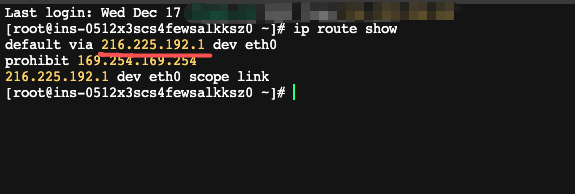
1、 Log in to the server using the primary IP (GMSSH is recommended), then run the command ip route show.
As shown in the figure, the gateway address is 216.225.192.1.
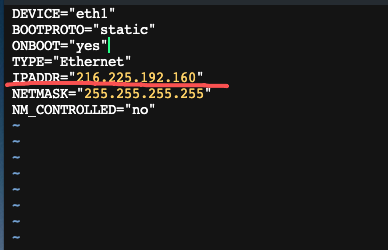
2、Create the configuration file: /etc/sysconfig/network-scripts/ifcfg-eth1,such as:
DEVICE="eth1"
BOOTPROTO="static"
ONBOOT="yes"
TYPE="Ethernet"
IPADDR="216.225.192.160"
NETMASK="255.255.255.255"
NM_CONTROLLED="no"
Then replace 216.225.192.160 with your newly added IP address, then save the file.
Run this command to delete: /etc/sysconfig/network-scripts/ifcfg-eth*files:
rm -f /etc/sysconfig/network-scripts/ifcfg-eth\*
Run the command to bring up the network interface: ifup eth1
3、Run the routing policy commands in order.
(1)sysctl -w net.ipv4.conf.all.rp_filter=2
(2)sysctl -w net.ipv4.conf.default.rp_filter=2
(3)sysctl -w net.ipv4.conf.eth1.rp_filter=2
// Replace 216.225.192.1 with your gateway address
(4)ip route add 216.225.192.1 dev eth1 scope link
(5) ip route add 216.225.192.1 dev eth1 scope link table 20
(6) ip route add default via 216.225.192.1 dev eth1 table 20
// Replace 216.225.192.160 with your newly added IP address
(7)ip rule add from 216.225.192.160 lookup 20
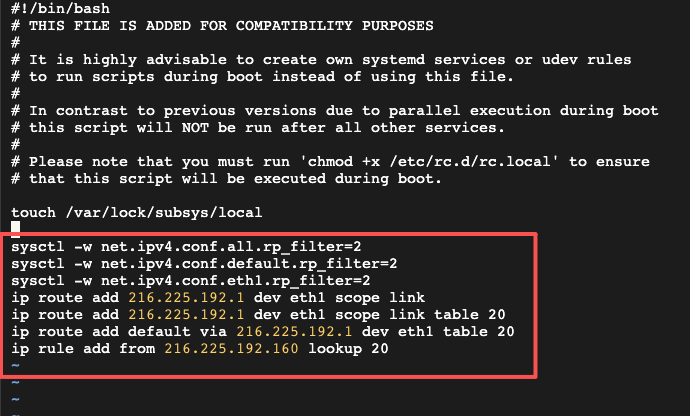
4. Configure a startup script to ensure normal access after a reboot.
Edit the file: vi /etc/rc.local
Add the commands from step 3 into the file, as shown in the figure.
Update the file permissions: chmod +x /etc/rc.d/rc.local
5、From another computer, test whether the newly added IP can be reached with ping.

* CentOS 8.x
CentOS 8 uses NetworkManager to manage networking, so no additional network configuration is required. You only need to switch the kernel to a permissive mode.
Run the following command to apply the change immediately:
sysctl -w net.ipv4.conf.all.rp_filter=2
sysctl -w net.ipv4.conf.eth1.rp_filter=2
echo "net.ipv4.conf.all.rp_filter = 2" >> /etc/sysctl.conf
echo "net.ipv4.conf.eth1.rp_filter = 2" >> /etc/sysctl.conf

 No relevant search results were found.